FTP Website Editing: The Complete Guide to Editing Any Website
James Strickland
Founder
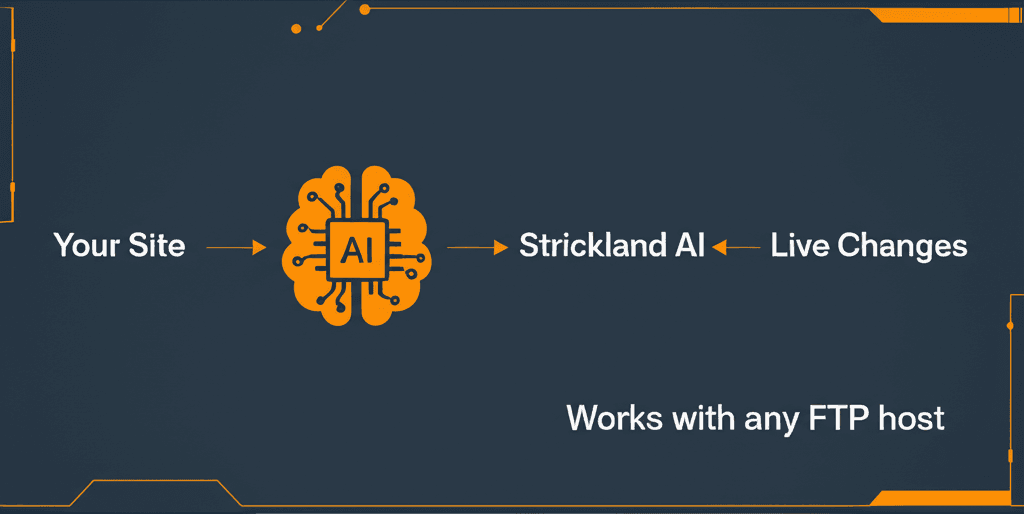
What is FTP Website Editing?
FTP (File Transfer Protocol) is the standard method for transferring files between your computer and a web server. FTP website editing means connecting to your web host and modifying your website files directly.
**Why it matters**: Every website you see is just files on a server. HTML, CSS, JavaScript, images—all accessible via FTP. When you edit these files, you control exactly what appears on your website.
How FTP Works
When you connect via FTP:
2. **Server grants access** to your file directory
3. **You browse files** like folders on your computer
4. **You edit or transfer** files as needed
5. **Changes appear** on your live website
It's like having a direct line to your website's source code.
FTP vs. SFTP vs. FTPS
| Protocol | Security | Port | Use Case |
|----------|----------|------|----------|
| FTP | None (plain text) | 21 | Legacy servers only |
| FTPS | SSL/TLS encryption | 990 | Secure file transfer |
| SFTP | SSH encryption | 22 | Most secure option |
**Recommendation**: Always use SFTP or FTPS when available. Strickland AI automatically detects and uses the most secure option.
Getting Your FTP Credentials
Every hosting provider gives you FTP access. Here's where to find credentials for popular hosts:
Major Hosting Providers
GoDaddy
Bluehost
HostGator
SiteGround
Namecheap
DreamHost
Standard Credential Format
**Can't find credentials?** Contact your host's support. They'll help you get FTP access.
Connecting with Strickland AI
Traditional FTP clients like FileZilla require installation and configuration. Strickland AI works in your browser:
2. Sign in or create free account
3. Click **Add Website**
4. Choose **Connect via FTP**
5. Enter your host, username, password, port
6. Click **Test Connection**
7. If successful, click **Connect**
**Done!** You're now connected to your website.
Understanding Your Server Structure
Most hosting accounts have a similar structure:
```
/home/username/
├── public_html/ ← Website root (edit here)
│ ├── index.html ← Homepage
│ ├── about.html ← About page
│ ├── css/
│ │ └── style.css ← Styles
│ ├── js/
│ │ └── main.js ← Scripts
│ └── images/
│ └── logo.png ← Media
├── mail/ ← Email (don't edit)
├── logs/ ← Server logs
└── tmp/ ← Temporary files
```
**Key insight**: Your website files are in **/public_html** (sometimes called /www or /htdocs). This is your website root.
Making Your First Edit
Let's walk through editing your homepage:
Step 1: Navigate to the file
In Strickland AI's file tree, expand /public_html and click index.html (or index.php).
Step 2: Understand the code
You'll see HTML like:
```html
<!DOCTYPE html>
<html>
<head>
<title>My Website</title>
</head>
<body>
<h1>Welcome to My Site</h1>
<p>This is the homepage.</p>
</body>
</html>
```
Step 3: Make a change
Change the h1 text:
```html
<h1>Welcome to My Amazing Site</h1>
```
Step 4: Save and publish
Step 5: Verify
Refresh your website. You'll see the new heading!
Visual Editing vs. Code Editing
Strickland AI offers both modes:
Visual Mode (No Code Required)
Best for:
How it works:
2. Edit it directly
3. Changes are translated to code
4. Publish when ready
Code Mode (Full Control)
Best for:
Features:
Common Editing Tasks
Changing Text
Visual: Click text → Type new content
Code: Find text in HTML → Replace it
Updating Images
Visual: Click image → Upload new file
Code: Change src attribute in <img> tag
Modifying Styles
Visual: Select element → Adjust color/size/spacing
Code: Edit CSS file or inline styles
Adding New Pages
2. Copy structure from existing page
3. Modify content
4. Add link to navigation
Fixing Broken Links
2. Replace with correct URL
3. Test all links after publishing
Best Practices for FTP Editing
1. Always Backup First
Before editing, download a copy of the file. Strickland AI does this automatically, but you can also:
2. Test Changes
3. Make Small Changes
4. Use Version Control
Strickland AI tracks every version. You can:
5. Mind File Permissions
Standard permissions:
Troubleshooting FTP Issues
Connection Problems
"Connection timed out"
"Authentication failed"
"Connection refused"
After Editing
"Changes not visible"
"Error 500 after publishing"
"Permissions error"
Security Considerations
Use Secure Protocols
Strong Passwords
Limit Access
Monitor Activity
FTP Editing for Different Site Types
Static HTML Sites
Full flexibility. Edit any .html, .css, or .js file directly.
WordPress Sites
Can edit:
Avoid editing:
E-commerce Sites (WooCommerce, Shopify)
Custom CMS/Frameworks
Works with any technology. Just locate the relevant files and edit.
FAQ
Is FTP editing safe?
Yes, when using secure protocols (SFTP/FTPS). Strickland AI uses encryption and never stores your passwords.
Will I break my website?
Not if you're careful. Always backup, make small changes, and use version history to restore if needed.
Can I edit any website I want?
Only websites you have FTP credentials for. You need hosting access to connect.
How fast do changes appear?
Instantly for most hosts. Some with aggressive caching may take up to 5 minutes.
Is this better than using a CMS?
It depends. FTP gives you full control but requires more knowledge. CMS is easier for basic content changes.
Get Started with FTP Editing
Ready to take control of your website?
2. **Connect your hosting** via FTP
3. **Start editing** immediately
No software to install. No technical expertise required. Just you and your website files.
Ready to try Strickland AI?
Edit any website via FTP or create new sites with AI in 60 seconds.
GET STARTED FREE →